Does this project require an additional ADS‑B receiver or antenna?
No. It obtains flight data via WiFi through the OpenSky Network API, so no additional hardware receiver is needed.
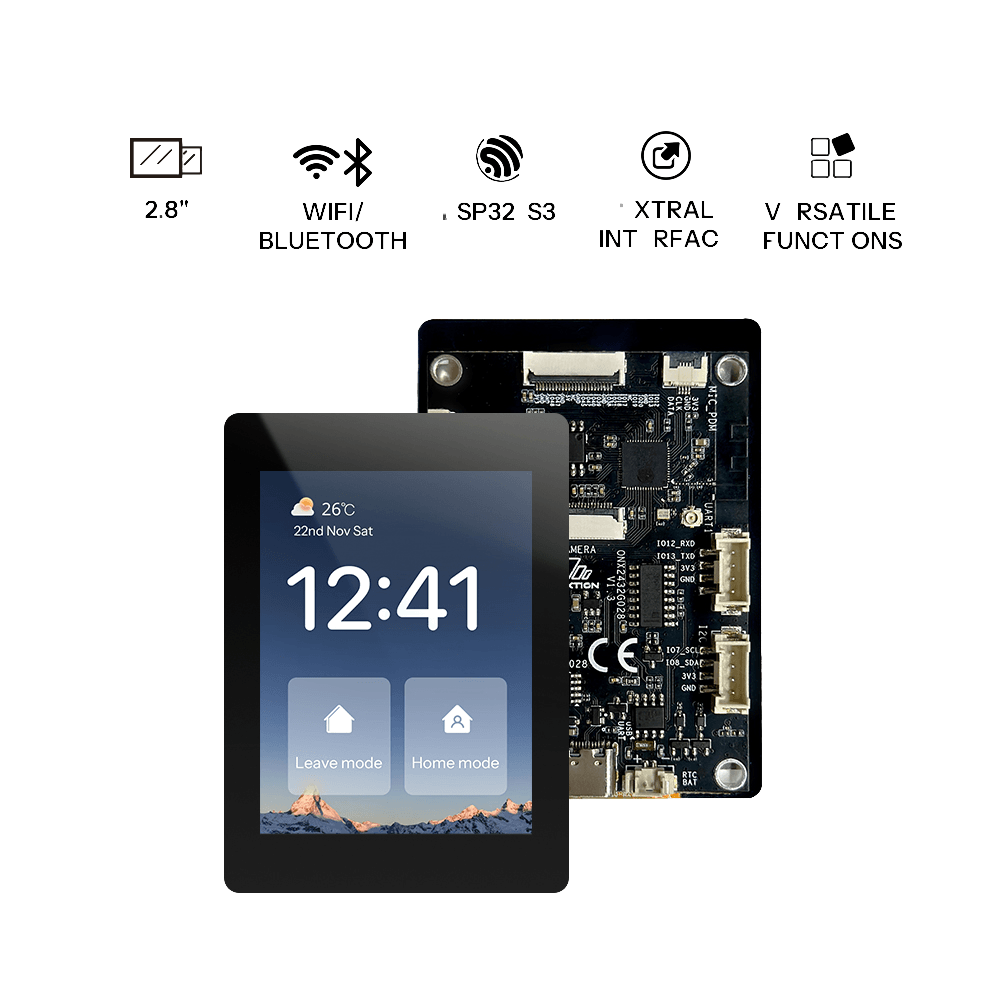
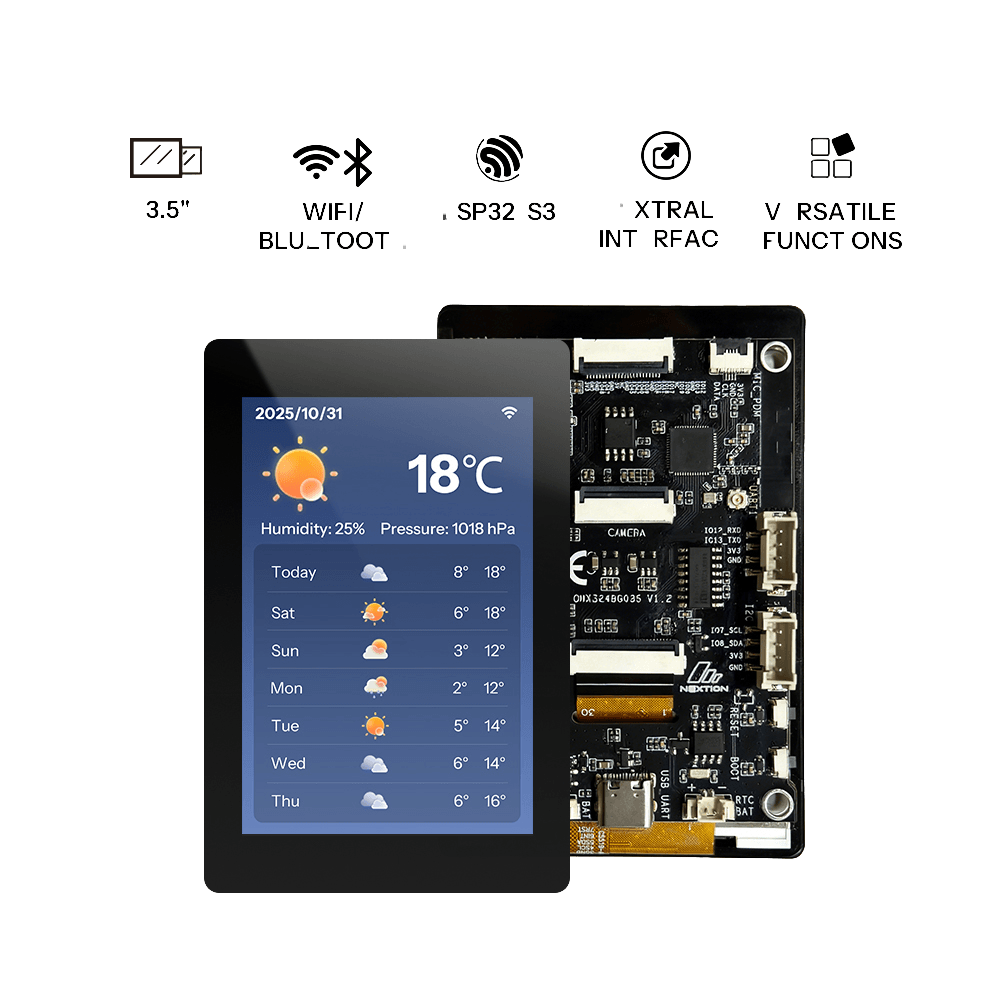
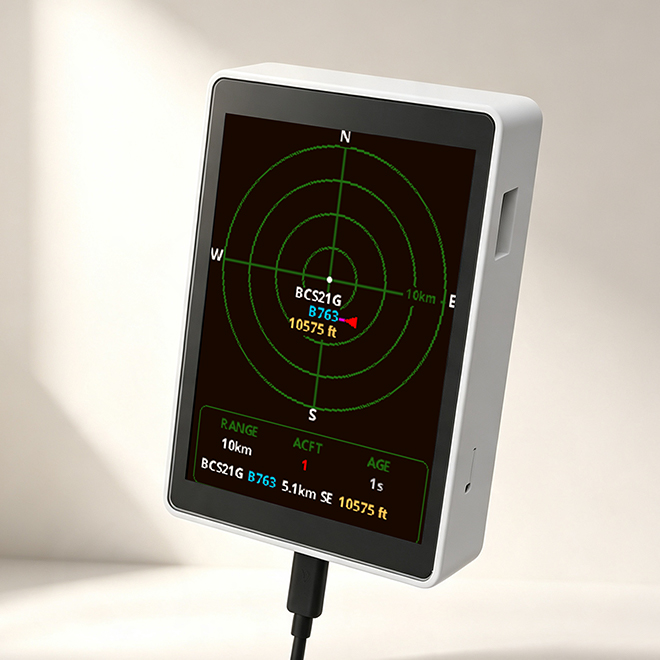
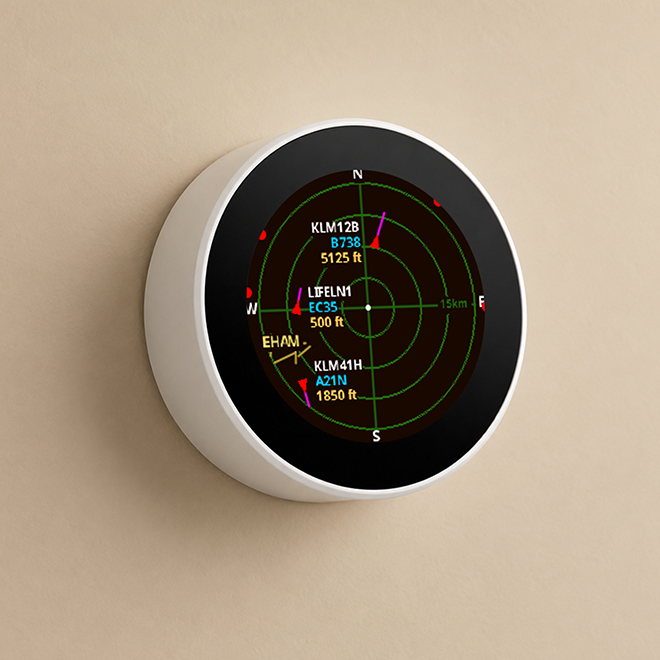
Plane Radar is a plug‑and‑play desktop radar for your OpenNextion ESP32‑S3 screen – flash it, connect to WiFi, and instantly see live flights above you. Based on the well‑known ESP32 Plane Radar, it supports portrait mode and needs no complex setup.
| Feature | Description |
|---|---|
| Real-Time Flight Tracking | Displays ADS-B aircraft currently flying near your location |
| Radar Range Switching | Supports range presets of 5km, 10km, 15km, and 25km |
| Flight Details | Shows flight number, aircraft type, altitude, heading, and more |
| Edge Indicators | Aircraft outside radar range are displayed as directional dots on the screen edge |
| Runway Overlay | Optionally display nearby major airport runway data (from the OurAirports database) |
Plane Radar uses the BOOT button for quick device operations.
| Action | Effect |
|---|---|
| Short press | Cycle through radar range presets: 5 → 10 → 15 → 25 km |
| *The 1.28" knob screen supports range switching by pressing the screen. | |
| Hold 3 seconds | Clear WiFi and location settings; reboot into factory reset state |
| Hold during setup/boot | Force reset and enter factory setup mode |
Before starting, ensure the USB cable supports data transfer and maintain a stable connection between the board and your computer.
After successful flashing, the board will automatically restart and boot into Plane Radar.
Connect your computer to the device's hotspot, then open the WiFi configuration page. Click "Configure WiFi", enter your 2.4 GHz WiFi SSID and password, and provisioning is complete.
PlaneRadar-Setup(open)http://192.168.4.1 or http://plane-radar.local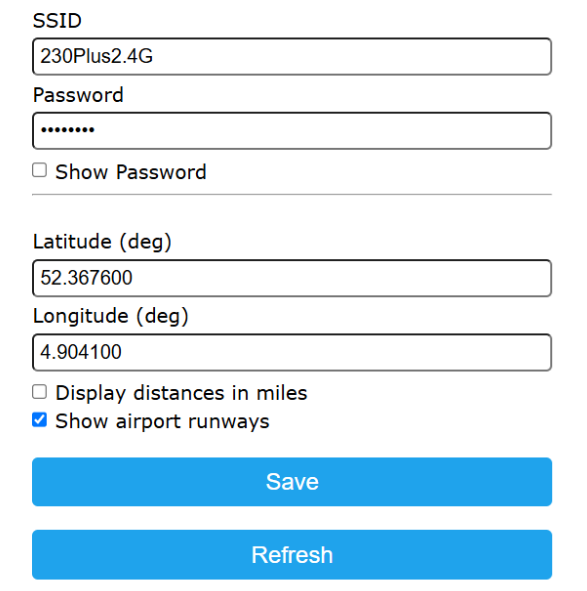
After successful WiFi provisioning, there are two ways to access the Web configuration page:
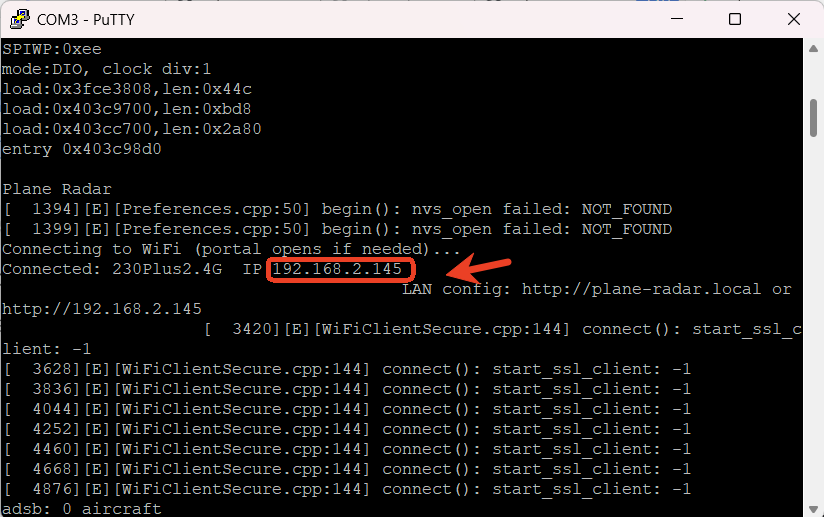
The Web configuration page opened in your browser appears as shown below:
(Bottom of the page displays the Web configuration IP address)
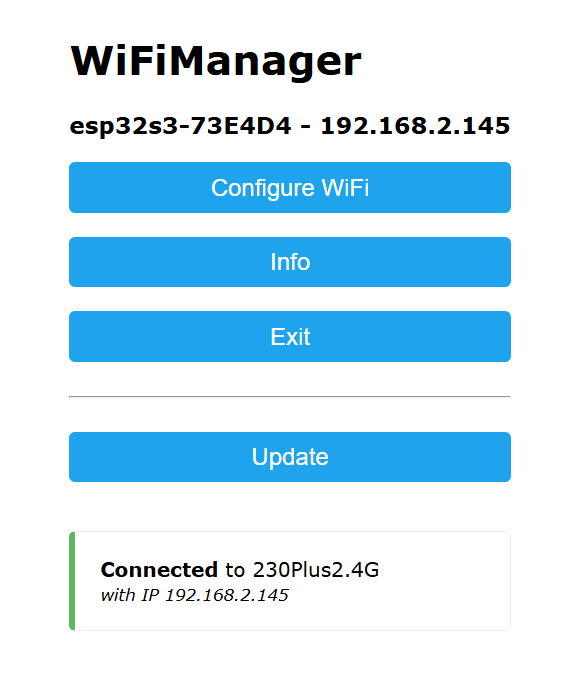
| Selection | Description |
|---|---|
| Configure WiFi | Change WiFi settings and modify radar center latitude/longitude coordinates |
| Info | View device and connected WiFi information; also allows firmware upgrade or erasing WiFi configuration |
| Exit | Exit the configuration page. The screen will then display: "WiFi connection failed, press and hold BOOT button for 3s to factory reset" |
| Update | Upload a .bin file for firmware upgrade |
No. It obtains flight data via WiFi through the OpenSky Network API, so no additional hardware receiver is needed.
Currently, this firmware does not use touch functionality. All operations are performed with the BOOT button – short press to cycle radar ranges, long press to clear configuration.
The device connects to the internet via WiFi to fetch flight data, so it works wherever you have a network connection. It is worth noting that the flight coverage from data sources like OpenSky is mainly based on publicly available ADS‑B data worldwide.
For the current version, it is recommended to perform a full firmware flash via USB. Future versions will support OTA wireless updates through the web configuration page.
The data comes from public ADS‑B sources such as OpenSky, which offer good real‑time performance. However, due to coverage and update frequency limitations, there may be some delay or blind spots. It is suitable as a fun desktop gadget and a tool for aviation enthusiasts, but is not recommended for professional navigation or tracking purposes.
We have designed a matching 3D‑printed enclosure and will release it for free on MakerWorld. If you don't have a 3D printer, you can also use a third‑party printing service, or simply use the board without an enclosure.